
Last updated
Search Vinted for a Nintendo Switch and the results can include Switch Lites, empty boxes and consoles sold without the dock. No filter field covers that, so you end up opening listing after listing to check. The Prompt filter lets you describe what you want in your own words. It uses AI to check the photos and text of each new listing that passes your other filters, and it skips clear mismatches.
The Prompt filter is part of InstantAlert, our alert service for Vinted, and every plan includes it. It's still marked experimental. It only decides which new listings reach you; what you buy is still your call. It never needs your Vinted login.
See it in 40 seconds
The video runs through one Nintendo Switch search. It shows the prompt being written, a match arriving as a notification, and the skipped listings under Rejected. It's an animated demo. The person and the voice are AI-generated, and the app screens are recreations of the real app.
Where the Prompt filter fits
Your alert checks each new listing in three steps, and each step only sees what the step before it let through:
- Search filters pick the listings by marketplace, category and search term, and by fields such as brand, size, condition and price.
- Custom filters remove listings that break your own rules, such as word lists, blocked sellers, seller countries and seller ratings. The custom filter guide explains how they match.
- The Prompt filter uses AI to compare each listing that's left with your prompt.
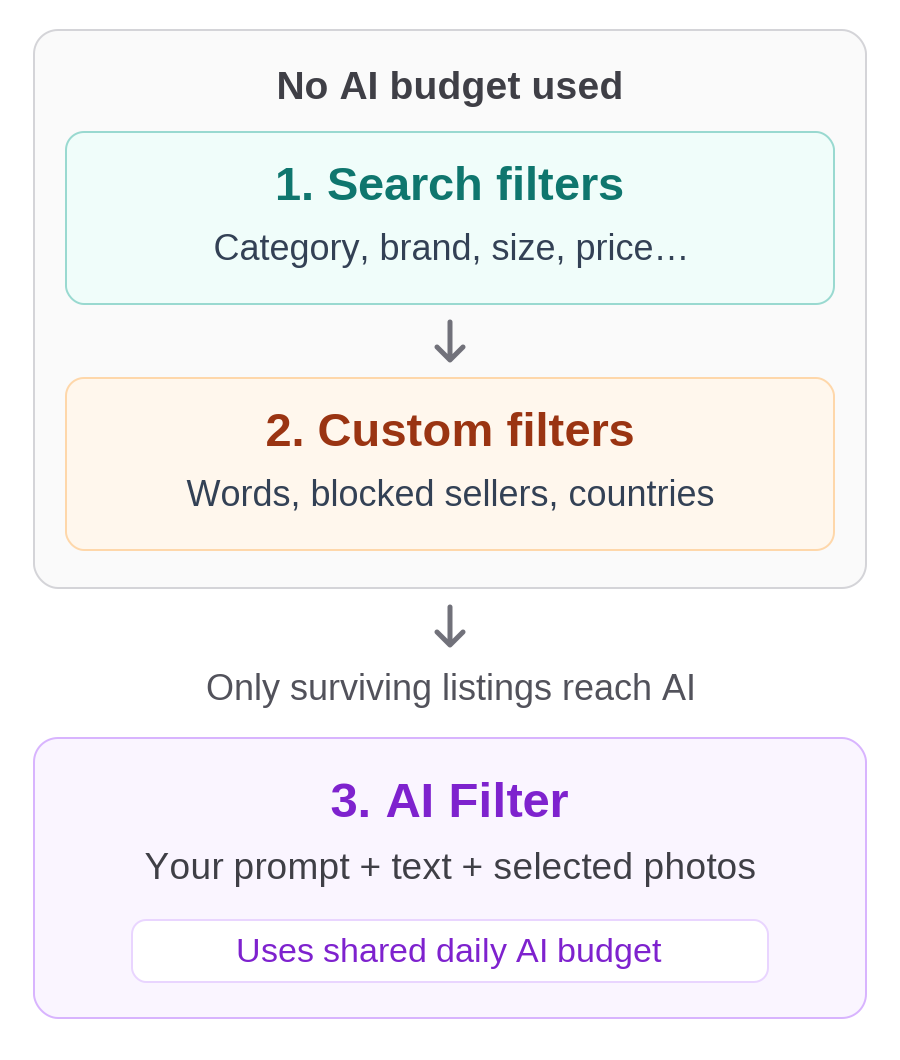
The Prompt filter can't bring back a listing that an earlier step removed. If a listing you wanted never showed up, check your search and custom filters first.
Because filters run first, use them for anything a field already covers, such as price, size or brand. They're exact, and they don't use your daily budget. Save the prompt for things someone would have to read or look at, like what comes with the item or how worn it is.
Set up the Prompt filter
You can add the Prompt filter to a new alert or an existing one, on the website or in the app. If you haven't made an alert yet, start with the alert setup guide. The steps are the same in both places:
- Open a new alert or edit one, then choose the marketplace and a category. The Prompt filter only opens once both are set.
- Add your search term and the filters that matter, such as price, size and brand.
- In the Prompt filter section, type what you want to see and what you don't. When you start typing in an empty box, the switch next to it turns On.
- Optionally, press Is my prompt good? for feedback on your wording.
- Save with Create search alert, or with Update search alert if you're editing.
To stop the Prompt filter on an alert, switch it off and save the alert. Your prompt stays saved for later. If the app doesn't match these steps, update it to the latest version.
What "Is my prompt good?" tells you
The check also uses AI. It reads your prompt alongside the category and filters you picked, then gives you a verdict, a short explanation and, if needed, points to fix. The verdict is Your prompt is good, Your prompt could be clearer or Your prompt needs changes, and each point has a Critical or Suggestion label.
When the check has a better version, two tabs appear: Your prompt and Improved. You can edit the improved text, then choose Use suggestion or Keep mine.
Sometimes the improved text leaves a gap in square brackets, such as a maximum price. Use suggestion then selects the gap first. Type your value and press Use suggestion again to use the improved text. Undo brings your own wording back.
The check doesn't try your prompt on real listings, and it doesn't use your daily budget. Write in whatever language you like.
The same press can also estimate how many new listings your filters would send to the Prompt filter each day. When that's more than your daily budget covers, a line such as About 3× your daily prompt filter budget appears. How to fix lists ways to narrow the search: a more specific category, a search term, a maximum price, or a filter such as brand or condition. Make a change, then press Is my prompt good? again.
Write a prompt the filter can act on
The Prompt filter judges one listing at a time, and it only skips a listing that breaks a rule you wrote down. This is how it treats some common wording:
- "Prefer complete sets" or "ideally boxed" skips nothing. Words such as prefer, ideally, especially and flag only express a wish. Write "Only complete sets" or "Reject listings without the box" instead.
- "Must include the charger" skips listings where the charger appears in neither the photos nor the text. Keep rules like this, and name every part you need.
- "No broken consoles" still lets through consoles sold as untested, because untested isn't the same as broken. Add "Reject untested consoles" if you only want ones known to work.
- "Under £100" applies to the price in the listing. Set a maximum price in the filters instead, so those listings never use your budget.
- "Flag scams" or "only good deals" skips nothing, because the filter can't spot scams or compare prices with the market. Set a price range instead, and add a seller rating filter if reviews matter to you.
- "Newest first" or "five results a day" does nothing. The filter can't sort, rank or limit results, so leave it out.
When the text and photos disagree about which model is for sale, the listing still comes through, marked as uncertain. A fault in an accessory doesn't count against the main item either. A scratched controller won't get a console skipped unless your prompt mentions the controllers.
The filter takes the seller's words and clear photos at face value. It won't skip a listing because the item might be fake or faulty, so checking authenticity is still up to you.
Example prompts
These examples are made up for this guide. Change the details to fit your own search.
A console with everything included
Only Nintendo Switch consoles with both Joy-Cons and the dock included in the sale. Skip Switch Lite models, accessory-only listings and empty boxes. Reject visible screen cracks.
The filter reads the description and photos to see whether the dock and both Joy-Cons come with the console. It skips a listing that pictures the dock but says the dock isn't included. It can't test whether the console works.
A jumper with at least 80% wool
Only jumpers with a readable material label showing at least 80% wool. Reject visible holes or large stains. Light pilling is fine.
The filter reads the label in the photos and what the seller writes. It only sees up to five photos, though, so it can skip a good jumper when none of them shows the label clearly. Ask for a readable label only when that matters more to you than the odd miss.
A bag without serious damage
Reject bags with torn lining, broken straps or peeling handles. Light scuffs on the corners are fine.
This prompt tells the filter where your line is between wear you accept and damage you don't. It judges what the photos show and what the seller writes, so you'll still want to ask about hidden damage and smells.
Check what it let through and what it skipped
Open an alert and you'll see two tabs: Results and Rejected.
In Results, listings from an alert with the Prompt filter have a small badge. Green plus signs (+, ++ or +++) mean a likely match; the more plus signs, the stronger the match. A yellow ??? means the filter wasn't sure, ran out of time, or the listing arrived before you switched the filter on. You still get those listings.
Rejected shows the listings it skipped, with the reason Low AI match score and a red - or --. Your custom filters put listings there too, each with its own reason, such as a blocked seller.
If the filter skipped a listing you wanted, open that listing's menu and choose Move to results. It shows up in Results marked as read, and you don't get a notification for it.
The filter only skips a listing when it's clear the listing breaks your rules. When it isn't sure, the listing comes through. It can still get things wrong in both directions:
- If good listings end up in Rejected, check whether your prompt asks for something not every listing shows, such as a photo of the label.
- If unwanted listings keep coming through, turn the wish into a rule with "Only…" or "Reject…".
A changed prompt only affects listings that appear after you save. The filter doesn't go back over earlier results, and editing the prompt doesn't move skipped listings back to Results.
Daily budget and alerts per plan
Every listing the Prompt filter checks counts toward one daily budget shared by all your alerts that use it. Skipped listings count too; checking your prompt with Is my prompt good? doesn't.
Your alerts page shows how much you've used as Prompt usage today. At 100%, alerts with the Prompt filter pause until the daily reset and then start again on their own. Alerts without it keep running.
If you don't want to wait, switch the Prompt filter off on the paused alert and save it. The alert then runs again with your other filters, and your prompt stays saved. Narrower searches send fewer listings to the Prompt filter, which makes the budget last longer.
Alerts with the Prompt filter count toward your plan's alert limit. They aren't extra alerts. Each plan allows the Prompt filter on a set number of alerts.
- Free Trial
- All 2 alerts
- Casual
- 2 of 7 alerts
- Premium
- 5 of 25 alerts
- Ultra 3
- All 3 alerts
- Ultra 7
- All 7 alerts
- Ultra 11
- All 11 alerts
Once you're at your plan's limit, switch the Prompt filter off on one alert to use it on another.
What the Prompt filter reads, and what it can't do
For each listing it checks, the Prompt filter sends these details to one of our AI providers, OpenAI or Perplexity:
- The listing's title, description, brand, size, condition and price
- Up to five of its photos
- Your prompt
That only happens for alerts with the Prompt filter switched on. Is my prompt good? always uses OpenAI: when you press it, OpenAI receives your prompt and the alert's search and filter settings. Our privacy policy has the details.
It can't tell whether an item is genuine, test whether it works, or tell you what it's worth. Look a listing over properly before you buy; the guide to misleading listings shows what to check.
The Prompt filter is still experimental. Depending on how it performs, we may change how it works, adjust its limits or remove it. If that happens, your alerts keep running with your regular filters, and your prompt stays saved.
Try it on a search you know well
The Prompt filter comes with every plan, including the free trial. Create a free account, or open your alerts if you have one. Then add a prompt to a search where you already know which listings you'd skip, so you can judge its decisions against your own. The feature overview has the short version.
If a decision looks wrong, send us feedback with your prompt, the listing and what you expected. Examples of both kinds of mistakes help us improve the filter.
The cover image is an illustration. The video is an animated demo with an AI-generated person and voice, and the diagram shows the filtering order.