Last updated
A Nintendo Switch listing can be within your budget and still exclude the dock you need. InstantAlert's AI Filter lets you describe that requirement in your own words. It checks listing text and selected photos after your search and custom filters to help remove unsuitable listings.
Our AI Filter is in public beta until 10 November 2026. Testing is free after we enable beta access on your account. This guide shows how to set it up, write useful prompts and understand the results.
Watch the filter setup
The video demonstrates the regular filters, custom exclusions and an AI prompt for a PlayStation console with specific accessories. It also shows the prompt-review action and the results screen.
How the filters stack
Your search filters run first, followed by custom rules. AI assesses the new listings that pass both layers.
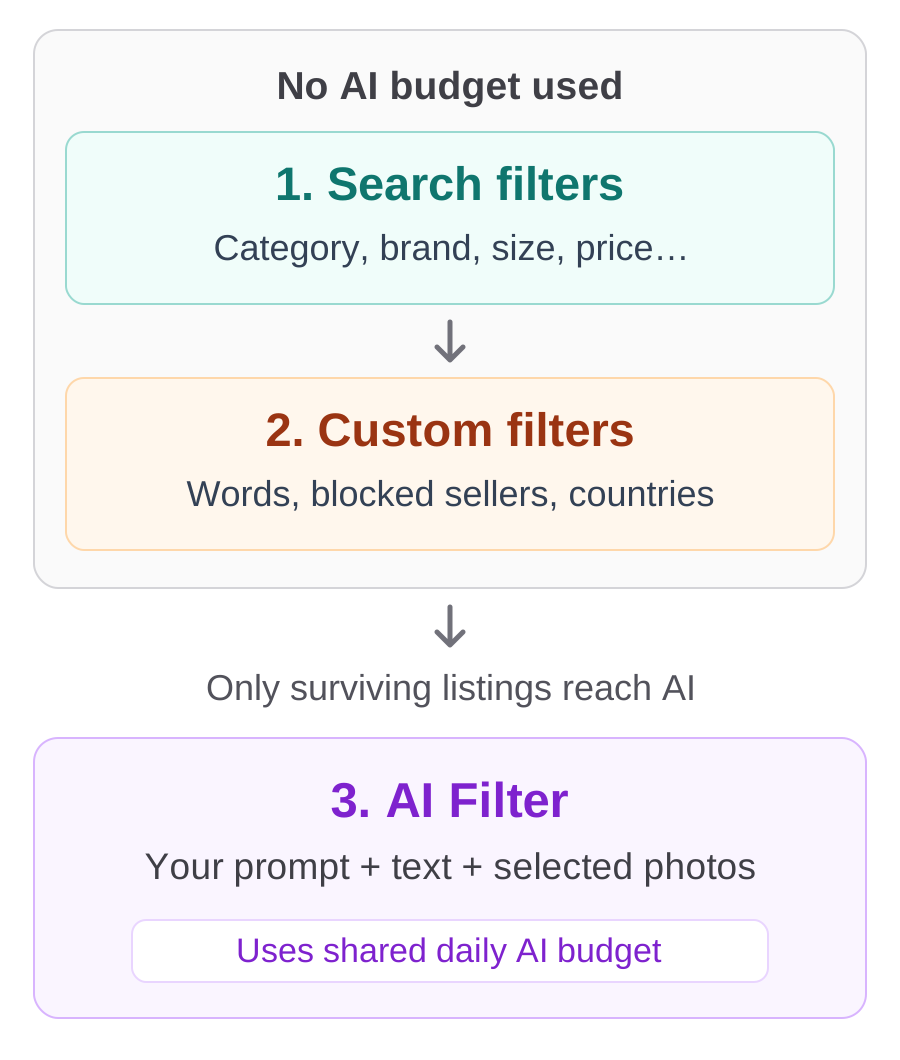
- Search filters define the items to look for. Choose the marketplace and category, then set relevant fields such as brand, size, condition or price. Vinted's search guidance describes using keywords and filters to narrow a search.
- Custom filters apply your additional rules, including word lists, blocked sellers and seller countries. The word, seller and country filter guide explains how those rules match.
- AI Filter assesses surviving new listings against your written preferences. It can interpret what is actually for sale, whether an accessory is included and what the supplied photos show.
AI cannot bring back an item removed by an earlier filter. A prompt allowing a certain accessory will not override a custom exclusion that already removed the listing.
Consider a hypothetical Switch search with a console category, Nintendo brand and your chosen price ceiling. Custom rules remove listings from sellers you have blocked. A remaining listing shows a dock in its photo, but the description says the dock is not included.
An AI prompt requiring the dock gives the filter a reason to reject that listing. A mention of "dock" alone does not establish that it comes with the console.
Set up the AI Filter on an alert
Start with an alert whose ordinary filters describe the search you want. If you have not created one, follow the alert setup guide first. You need beta access and an available AI alert slot.
- Open a new alert or edit an existing one. Choose the marketplace and category, then set your search and custom filters.
- Open AI Filter. In Review filters & activity, you can select Check how busy this search is for an approximate daily workload.
- Open Write your prompt and describe the additional requirements. Typing the first prompt enables AI; check that its switch is on before saving.
- Optionally select Is my prompt good? to check whether your instructions are clear and can be judged from listing text and photos.
- Review any suggested wording, then save the alert. Use suggestion changes the draft; you still need to save. Keep mine and Undo let you retain your wording.
Both checks are optional. The activity check estimates listing volume before AI and compares it with your account's daily AI budget. It simplifies some country and description-dependent filtering, so the estimate can differ from actual monitoring. It does not predict how many listings your prompt will accept.
The prompt review checks your instructions in the context of your selected filters. It does not test them against live listings. You can write in your own language; a short, specific requirement is enough.
Give AI a decision to make
Use the normal fields for a price ceiling or size. Use AI when you need to interpret evidence, such as whether a controller pictured beside a console is included in the sale. A prompt such as "Nintendo Switch" names the item but leaves your requirements unstated.
These hypothetical prompts show different ways to express that decision. Adapt the requirements to your search.
A Nintendo Switch with the accessories you need
Only show Nintendo Switch consoles with both Joy-Cons and the dock included in the sale. Skip Switch Lite models, accessory-only listings and empty boxes. Reject visible screen cracks. Light wear on the casing is fine.
This asks AI to distinguish a console with its dock from a dock sold alone. If the seller explicitly says an accessory is excluded, that statement takes priority over a photo showing it. When a required accessory has no support in the supplied text or photos, the filter can treat the listing as a non-match.
That can save you from opening listings for incomplete sets or accessories sold on their own. AI cannot physically test the console.
Wool jumpers with a readable material label
Only keep jumpers with a readable material label showing at least 80% wool. Reject visible holes or large stains. Light pilling is fine.
This asks AI to read the material label as well as the seller's chosen material field. The 80% threshold is an example preference. Requiring a readable label is strict: an otherwise suitable jumper may not qualify if the relevant photo is missing or unclear.
AI may receive only selected photos, so it cannot always inspect every label shown on the full listing. Use this requirement when label evidence matters enough to exclude listings without it.
Trainers with acceptable visible wear
Reject trainers with visible holes or soles worn smooth. Light creasing on the uppers is fine.
This defines the difference between wear you accept and damage that rules an item out. A seller's broad condition category may not express that distinction. AI can assess visible wear, but hidden damage or odours still require your own checks and questions.
Check results and daily AI usage
Open your alert's Results and Rejected views to inspect the accepted and excluded listings. Rejected listings can come from custom filters as well as AI, so read the reason before changing your prompt. To recover one, open its action menu and choose Move to results.
An AI Match Score estimates how well the available evidence matches your preferences. It is not verified accuracy or proof of authenticity. Uncertain or unavailable AI assessments can still pass through when the earlier filters allow the listing. A notification therefore does not prove that every AI requirement was met.
AI also cannot look up current selling prices, predict resale profit or establish facts absent from the listing evidence. Continue to check a listing before buying.
Your AI alerts share a daily AI budget. Assessing a listing uses that budget even if AI rejects it. Specific search and custom filters reduce the work that reaches AI; you do not need AI for a requirement those filters already cover.
Check AI usage today for the percentage used. Reaching your daily AI limit can pause AI-enabled alerts until the next daily reset. Their expiry and capacity limits still apply. That AI limit does not pause ordinary alerts without AI.
Changing a prompt affects future checks. It does not rerun old results, restore rejected listings automatically or reset daily usage. Review earlier rejections separately when you change what you want.
Try it during the public beta
To request access before 10 November 2026, create a free InstantAlert account and send your username through Support & feedback. We will enable beta access so you can test the AI Filter for free.
Start with one search you know well. If a decision looks wrong, send the prompt, the listing and what you expected. Examples of unwanted items that passed through and useful items that were rejected help us improve the filter.
Request AI Filter beta access or send feedback
The cover image is an illustration. The video shows InstantAlert, and the diagram explains its filtering order.